Product updates
eSIM invoices for business travellers
Updated 7 October 2026
At a glance: Business travellers can download a PDF invoice for every Halo order from their portal, including earlier purchases. Add optional company and address details before downloading. Invoices show a GBP total, with the amount actually paid beneath if your card was charged in another currency. Start with the portal link in your delivery email.

A work trip comes with enough paperwork. Your travel data should not add a treasure hunt through your inbox. Halo now gives every order an invoice-grade receipt you can download from your portal, including orders you placed before this update. No support ticket needed.
If you need an eSIM invoice for expenses, or a travel eSIM receipt for work, the useful bit is simple: open the order, add company details if you want them, and download the document. You can leave those fields empty when a personal receipt is all you need.
What changed
There is now a Download invoice control in the portal’s order details. It gives you a PDF invoice for that order, with a sequential invoice number. You can retrieve the paperwork for a previous purchase as well as a new one. Buying today is not a condition for finding yesterday’s document.
The invoice is in GBP. If your card was charged in another currency, the amount actually paid appears beneath the GBP total. That keeps the invoice total and the card payment visible together, rather than leaving you to guess why two records look different.
You can also add optional company and address details before downloading. The portal labels the first field Company name, followed by the address fields. These are optional: you do not need to invent a business name to get a document for a personal trip.
Who it is for
This is for business travellers, freelancers and anyone putting travel data through an expense process. Perhaps you bought your eSIM while packing, then remembered the receipt after the trip. Perhaps your finance team needs the company address on the document. Either way, the paperwork is available from the order itself.
It is useful for personal records too. You can keep the invoice alongside the rest of your trip documents without adding company details. What your employer accepts for expenses is still something to check with them; having a downloadable invoice does not decide their reimbursement rules for you.
How to use it
Open the portal link in your Halo delivery email. It takes you to your order’s page. If you need to find an older order, open Past orders, then select the purchase you want. Its Order details view contains the invoice controls.
Choose Add business details if the invoice needs a company name or address. The address fields are Address line 1, Address line 2, Town or city, Postcode, County, state or region and Country. Fill in the details you want included, then select Save details. Leave unused fields empty. Once saved, the control becomes Edit business details, so you can check what you entered.
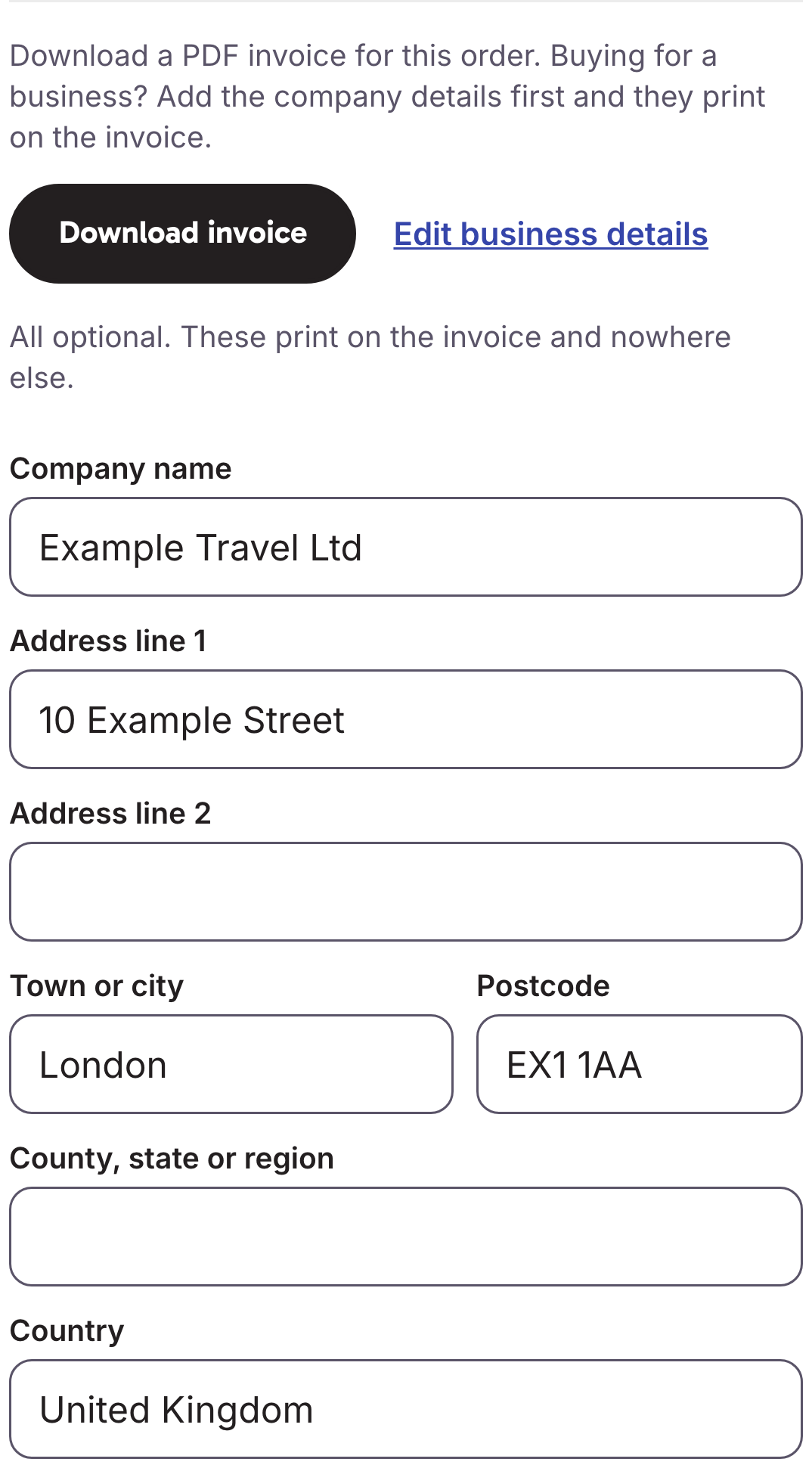
Select Download invoice to get the PDF. Check the document before attaching it to your expense claim, especially if your company has a particular naming or address format. The invoice is there when you need it; no email exchange with support is required to obtain it.
Lost track of the delivery email? Start at My Halo. For the wider journey from choosing travel data to getting connected, see how Halo works.
What has not changed
This update adds easier access to your order paperwork. It does not change the data allowance, destination coverage or validity of the plan you purchased. Adding a company address is about the document, not changing the travel data on your phone.
For your next trip, choose the destination and plan that fit your route. The Japan eSIM page shows current plans and prices if Japan is your next stop. Keep the delivery email handy afterwards: it is your route back to the portal, your order and its invoice.