Install your Halo eSIM on your Samsung Galaxy device using the QR code from your order confirmation email. The process takes about 2 minutes.
What you need
- Samsung Galaxy S20 or later, Galaxy Z Flip or later, or Galaxy Z Fold or later
- The minimum Android version is set by the model, not by Halo: the Galaxy S20 needs Android 10. Our compatibility checker shows the exact minimum for your model
- A Wi-Fi or mobile data connection (required to download the eSIM profile)
- Your Halo eSIM (from your order confirmation email or the purchase success page)
Steps
- Open Settings on your Samsung device.
- Tap Connections.
- Tap SIM manager (or SIM card manager on older One UI versions).
- Tap Add eSIM.
- Tap Scan QR code from service provider.
- Point your camera at the Halo QR code.
- When the plan details appear, tap Confirm.
- Wait for the profile to download. This takes 30 seconds to 2 minutes.
- Tap Done when the installation completes.
After installation, your new eSIM appears under SIM manager in Settings.
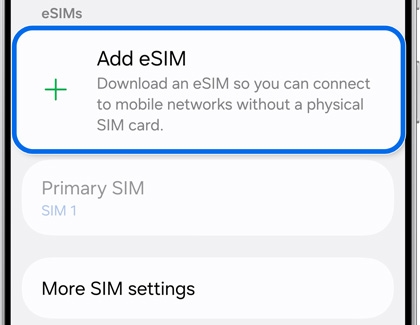
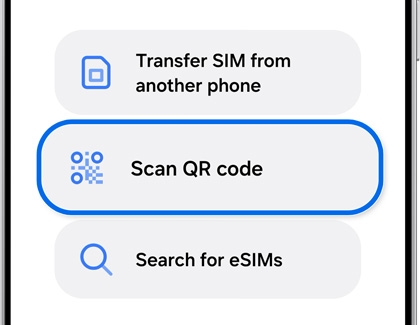
Screens shown are Samsung Galaxy examples. Labels may vary by model, region and One UI version. Screenshots: Samsung Support.
Set your data line
After installing the Halo eSIM, configure it as your mobile data line.
- Open Settings > Connections > SIM manager.
- Under Mobile data, select your Halo eSIM.
- Turn off Data switching to prevent your device from using your primary SIM for data.
Activate before you travel
Install your Halo eSIM while you still have a stable internet connection, ideally the day before your trip. The eSIM will activate automatically when you arrive at your destination and connect to a supported network.
If your eSIM shows “No Service” after arriving, see If your Halo eSIM isn’t connecting.